BGInfo is a popular Microsoft Sysinternals utility that automatically overlays essential system information—such as the computer name, IP address, operating system version, and boot time—directly onto a Windows desktop wallpaper. Widely used by IT professionals and system administrators managing large environments or multiple virtual machines, it provides an immediate, at-a-glance view of vital diagnostic details without requiring users to navigate menus or command prompts.
I have been using BGInfo for years on any Windows system that I log into frequently. I find it especically useful in situations where you have a pool of Windows VMs that were cloned from a single image where the desktop might be the same across 10 or more systems.
Anyway, I have a very particular BGInfo config that I personally find useful. It uses WMI Filters to remove the (none) field for the IP, Subnet, DNS and Gateway so it only shows relevant information.
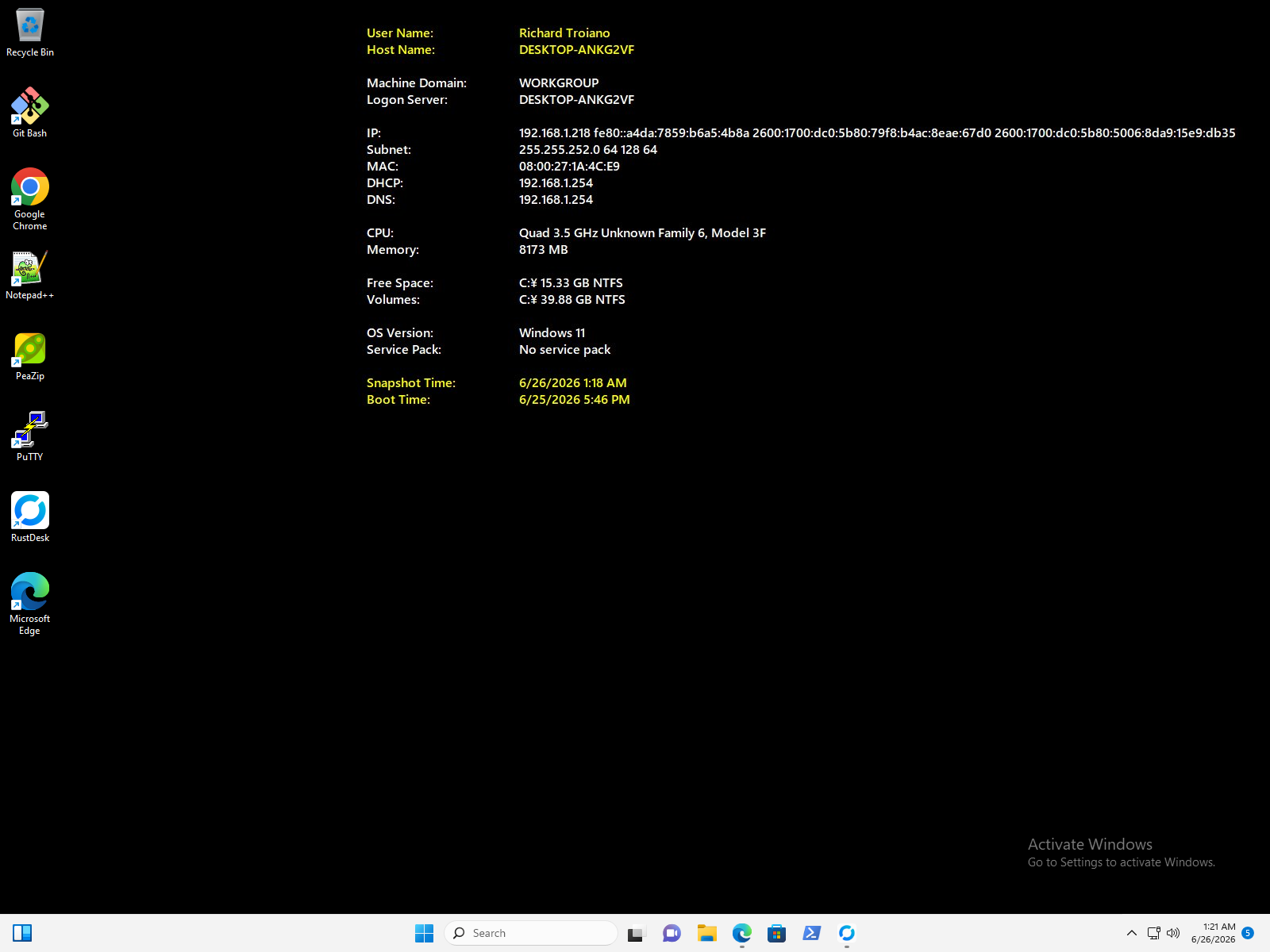
The Snapshot Time field shows the last time BGInfo was updated, and Boot Time is the last time the system rebooted. I have created a simple PowerShell script that opens the BGInfo64, applies my custom Default.bgi file, updates the Snapshot Time to reflect when the BGInfo executable was last run. This will also update any other fields that might have changed since the last time the script was executed.
- Download BGInfo from Sysinternals
- Extract the zip file into c:\BGInfo
- If you want to use the format shown above, here is a copy of my Default.zip, extract the file to C:\BGInfo
- Next, create a new file in C:\BGInfo\ called BGInfo.ps1
BGInfo.ps1
# Set the working directory to the BGInfo folderSet-Location -Path "C:\BGInfo"# Start BGInfo64 with the specified configuration and argumentsStart-Process -FilePath ".\Bginfo64.exe" -ArgumentList "C:\BGInfo\Default.bgi /NOLICPROMPT /TIMER:0" -Wait# Exit the PowerShell sessionExit
- Save the file.
- Now right Click on BGInfo.ps1 and choose Run in PowerShell.
- This should open a PowerShell command prompt for a moment, and then your desktop wallpaper should update and show the BGInfo output.
- Now that we know the PowerShell script is working, let’s open Task Scheduler in Windows.
- Open Task Scheduler by pressing the Windows Key, typing “Task Scheduler”, and hitting Enter.
- Click Create Task… in the right-hand Actions pane to open the advanced task configuration window.
- In the General tab, name your task, select Run whether user is logged on or not, and check Run with highest privileges.
- Navigate to the Triggers tab, click New…, and select At log on.
- Go to the Actions tab, click New…, and ensure the action is set to Start a program.
- Type
conhost.exeinto the Program/script field. - Add the following line to your Add Arguments field:
--headless powershell.exe -WindowStyle Hidden -NonInteractive -ExecutionPolicy Bypass -File "C:\BGInfo\BGinfo.ps1"
- Switch to the Settings tab and check Allow task to be run on demand so you can easily test it later.
- Click OK to save the task.
- Now, try to run the task and see if it updates the BGInfo Snapshot Time field without opening the PowerShell command Window.
- If it works as expected, try logging in and out of the system. It should update the Snapshot Time field few seconds after loading the Desktop
If everything is working, export the task from Task Scheduler and save the .xml in the BGInfo Folder. Next time you want to deploy this to another system, copy your entire BGInfo folder to c:\BGInfo and import your Task into Task Scheduler.
If you have a number of machines that you want to deploy to, I would recommend configuring each machine to allow PS-Remoting so you can easily automate anything you want via powershell. If PS-Remoting is enabled, you can easily automate deploying your custom Task Scheduler to any number of machines.