The Ultimate Tool for System Provisioning: How Ninite Revolutionizes IT Workflows
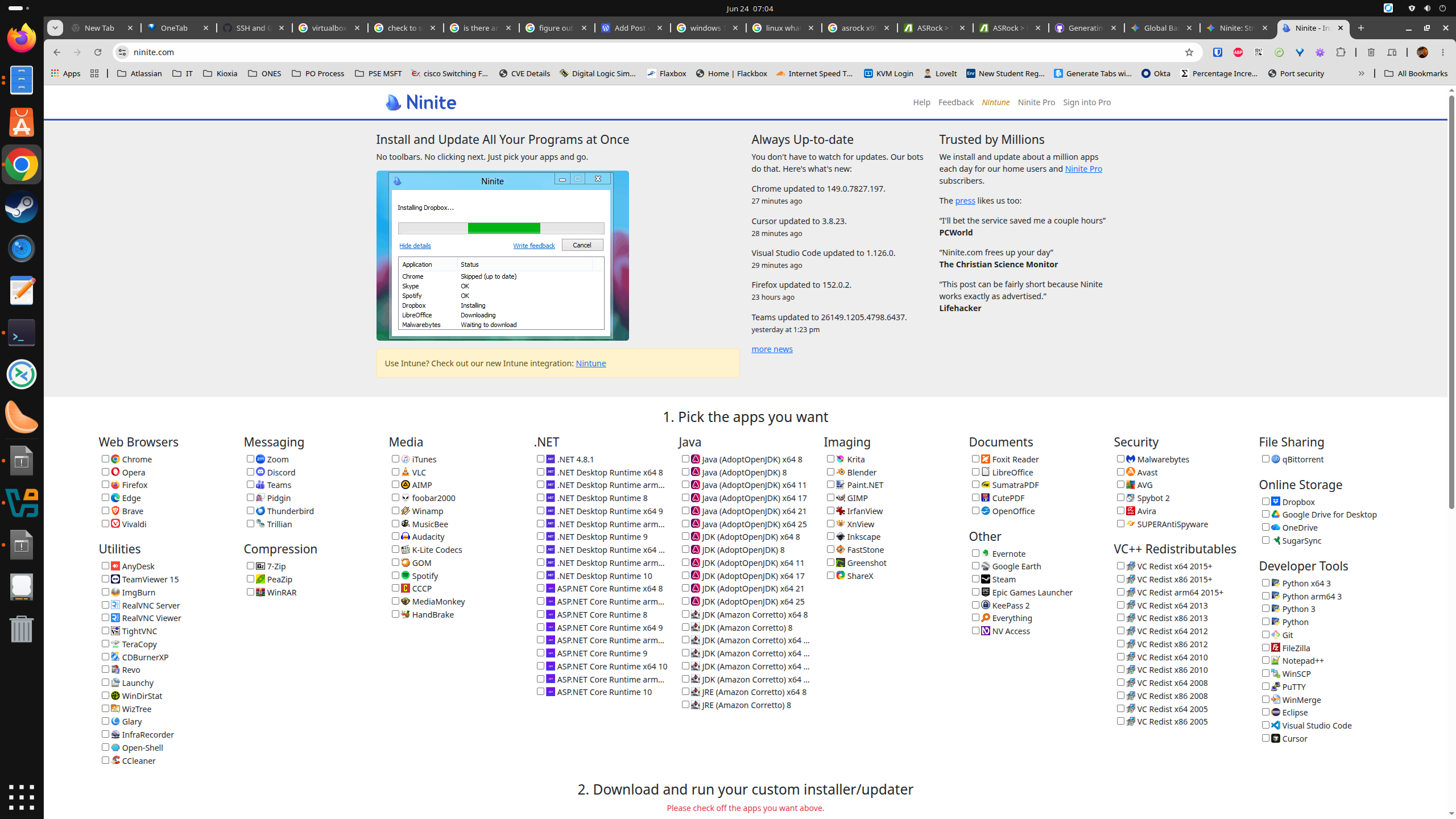
Setting up a new computer—or provisioning a fleet of dozens of new workstations—is traditionally one of the most tedious tasks in IT. Downloading web browsers, media players, runtimes, and utility applications one by one, clicking “Next” through endless installation wizards, and dodging bundled adware can consume hours of a technician’s day.
Enter Ninite, a streamlined package management system for Windows that automates the installation and updating of software. For both home users and enterprise IT professionals, Ninite has become an indispensable utility that transforms a manual, multi-hour chore into a single-click operation.
I have been using Ninite for well over a decade to install the standard set of applications on any Windows based system that I needed to configure. It has saved me countless hours, and makes every system I deploy exactly the same in terms of the applications that are available to use immediately after deploying Windows.
What Makes Ninite So Great?
Ninite’s brilliance lies in its simplicity and strict adherence to best practices for software deployment. Here is why it stands out:
- 100% Unattended Installations: Once the Ninite executable runs, it requires zero user interaction. There are no dialog boxes, no EULAs to accept, and no installation paths to verify.
- Zero Bloatware or Toolbars: Ninite automatically unchecks the bundled adware, browser extensions, and trial software that notoriously hitch a ride on free software installers.
- Always the Latest Version: The tool always fetches the most current, stable version of the requested application directly from the publisher’s official servers.
- Architecture and Language Matching: Ninite automatically detects the target machine’s operating system environment. It installs 64-bit applications on 64-bit machines and matches the application language to the OS locale.
- Automatic Resumes and Reboots: If an internet connection drops, Ninite resumes the download. If an app requires a reboot, Ninite handles the installation sequence intelligently so it does not interrupt the flow.
How to Use the Standard Ninite Tool
For one-off system setups or standard helpdesk use, the free version of Ninite is incredibly straightforward:
- Select Your Software: Navigate to Ninite.com. You will be presented with a massive grid of popular applications categorized by type (Web Browsers, Messaging, Media, Runtimes, Imaging, Security, etc.). Check the boxes next to the applications you need.
- Generate the Installer: Click the “Get Your Ninite” button. The site will generate a custom, lightweight
.exefile tailored to your specific software selections. - Run the Executable: Execute the downloaded file on the target machine.
- Walk Away: A single status window will appear, showing the downloading and installation progress for every selected application. When it finishes, the system is fully populated with software.
How Ninite Saves IT Professionals Massive Amounts of Time
While the web-based tool is fantastic for ad-hoc setups, the real time-saving power for IT departments lies in Ninite Pro. Here is how integrating Ninite into a professional workflow drastically cuts down on administrative overhead:
1. Eliminating “Fat” Deployment Images
Traditionally, IT teams created “fat” Windows images pre-loaded with every application a user might need. The problem with this approach is that software updates rapidly; an image created in January is severely out of date by March, requiring the IT team to constantly rebuild their deployment images.
With Ninite, IT can deploy a “thin” base image (just the OS and core drivers) and push a Ninite script immediately upon the first boot. This ensures the newly provisioned machine always has the absolute latest versions of its applications, saving sysadmins from the endless cycle of rebuilding base images.
2. Silent Command-Line Automation
Ninite Pro can be operated entirely via the command line, meaning it can be seamlessly integrated into PowerShell scripts, batch files, or remote monitoring and management (RMM) tools. IT can run commands like NinitePro.exe /select Chrome Firefox Java /silent to deploy software completely in the background without the end-user ever seeing a loading bar.
3. Effortless Patch Management
Keeping third-party software (like web browsers, PDF readers, and media players) updated is critical for security, as outdated software is a primary vector for malware. Ninite Pro includes an /updateonly switch that scans the network, audits current software versions, and silently patches any outdated applications to their secure versions, all without user disruption.
4. Bandwidth Conservation with Caching
If you are deploying software to 50 machines simultaneously, downloading Google Chrome 50 times will cripple a local network. Ninite Pro includes a caching feature; it downloads the installer once to a designated local cache server, and all subsequent network machines pull the installation files locally. This accelerates deployment times and drastically reduces WAN bandwidth consumption.
5. Managing Remote and Offline Machines
Through its live web interface, Ninite Pro allows administrators to manage software patches across entirely different networks. Because the Ninite agent communicates securely back to the cloud, IT teams can push software updates to roaming laptops that are off the corporate VPN. Furthermore, Ninite Pro can generate fully offline installers for environments that are air-gapped or have strict firewall rules.
By eliminating manual software deployment, automating patch management, and ensuring standardized configurations across endpoints, Ninite removes the friction from endpoint administration, allowing IT professionals to focus on higher-level infrastructure tasks.
Ninite Pro: Patching and Deploying Apps from Your Browser
This video provides a clear visual overview of Ninite Pro’s advanced functionality, including how to handle offline updates, custom scripts, and bulk deployments across multiple machine groups.